For the Innioasis Y2
The iPod classic, rebuilt for the click wheel of the Innioasis Y2. Cover Flow, synced lyrics and the menus you remember. Plus what the iPod never had: Play On to a Sonos or smart TV, Bluetooth in the car, Wi-Fi and FM radio.
BetaFree, for personal and educational use. Each release has the firmware and the app.


Bluetooth in the car
Title, artist and a progress bar on the car screen. It pauses when the car turns off, and plays on when you come back.
Synced lyrics
The lyrics follow the song, from .lrc files or from the tags. With pinyin or romaji if you want.
Cover Flow that keeps up
The iPod order and layout, smooth on a fast spin, and a letter jump in every list.
Tuned like the iPod
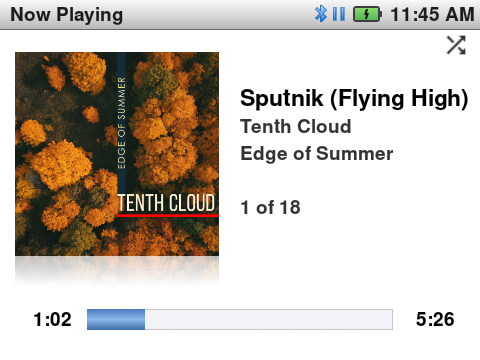
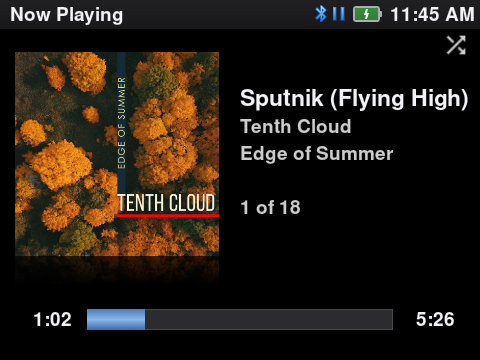
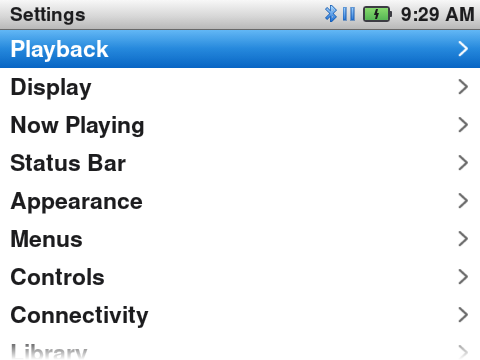
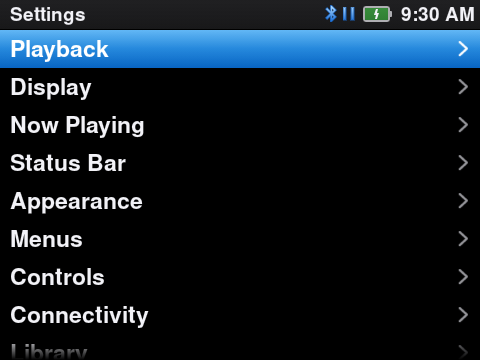
Classic Light and Classic Dark. Each screen is tuned to look and move like the iPod classic.
Wi-Fi that does something
Jellyfin sync, podcasts, upload from a browser, and the correct time from the internet.
FM radio
The tuner of the Y2, with saved stations, from any screen and with the screen off.
The polish
It looks like an iPod. It moves like one.
The user interface is the point. Each screen uses the measurements of the iPod classic: a 30 px status bar, 38 px rows with a drawn chevron, the menu shadow over the album art. Then each screen was tuned on the Y2, frame by frame.
- The album art next to the menus pans and zooms slowly, as on the iPod.
- Menus slide in from the right and out to the left. Into Cover Flow, and from a menu with art into Now Playing, the list and the art move apart.
- Back goes to the row that you came from, at the same height in the list.
- Menus, questions, notices and waits are iPod screens that the wheel can use, not Android pop-ups.
Two themes
Classic Light. Classic Dark.
Two built-in themes, and every screen, row, icon and colour is tuned for both. One look that works on each screen.
- Auto: Classic Light by day, Classic Dark after sunset, from your time zone.
- A theme change applies at once. The music keeps playing, and you stay on the same row.
Cover Flow
Spin through 500 albums. No stutter.
Cover Flow has the positions, reflections and order of the iPod: by artist, then album, without a leading “The”. Each step does much less work than before: in a test of 30 fast wheel steps, the late frames went from 83 to 4.
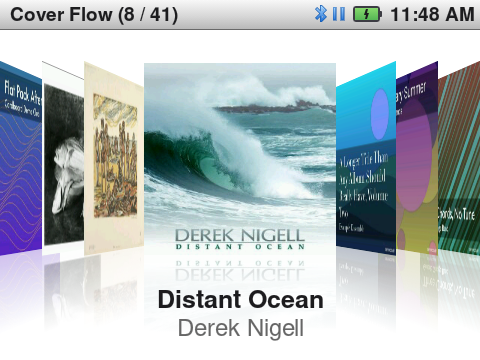
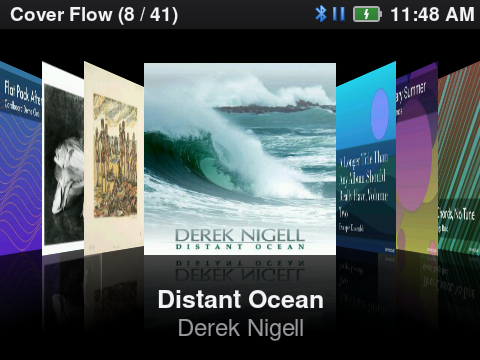
- Cover Flow opens at the album that is in Now Playing. With nothing in Now Playing, it opens at a random album.
- The text under each cover shows the album artist, or “Various Artists” for a compilation.
- The first Cover Flow after a start is as fast as the next ones: the covers are ready in the background.
Letter jump
4,000 songs? Turn faster.
Turn the wheel fast and the list goes letter by letter, with a large letter box, as on the iPod. It works in all alphabetical lists and in Cover Flow.
Now Playing
The screen you look at most.
An angled cover with a reflection, a glass progress bar and iPod times: 2:08, -0:34, 1:02:08.
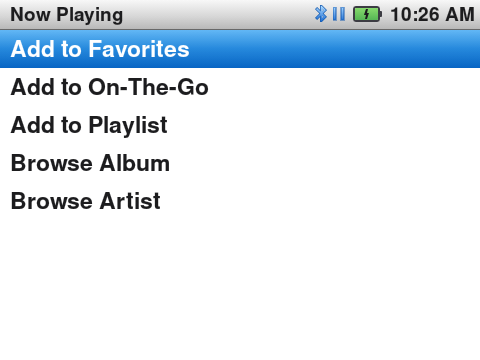
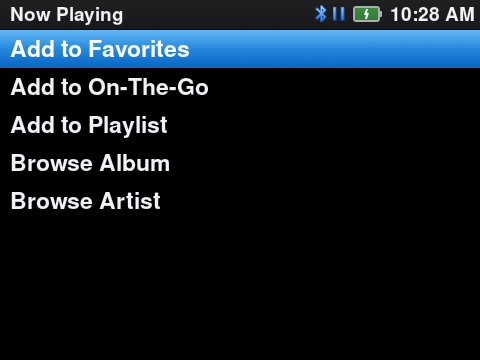
- The song menu: Add to Favorites, Add to On-The-Go, Add to Playlist, Browse Album, Browse Artist, Play On.
- 30 equal volume steps of 2 dB, kept for each output: speaker, headphones, Bluetooth.
- Fast skips: the new title and cover show about 0.16 s after you push Next (it was 0.56 s).
- Hold Next or Previous to seek, from 4× up to 120×. Hold Play/Pause to stop.
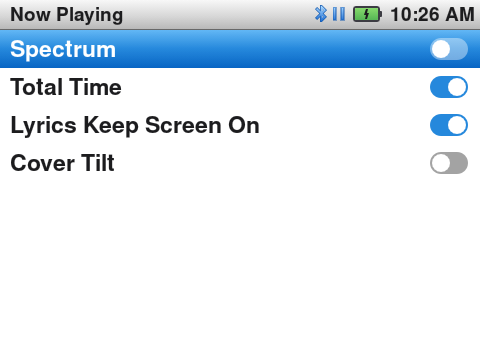
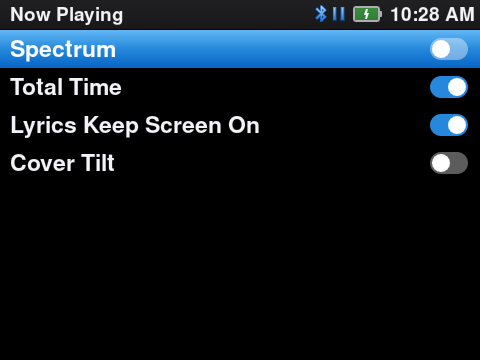
- Total Time shows the length of the song in place of the time left.
Lyrics
Sing along. In two scripts.
One push of the centre button shows the lyrics over the full screen. Synced lyrics follow the song, with soft fades at the top and bottom edges.
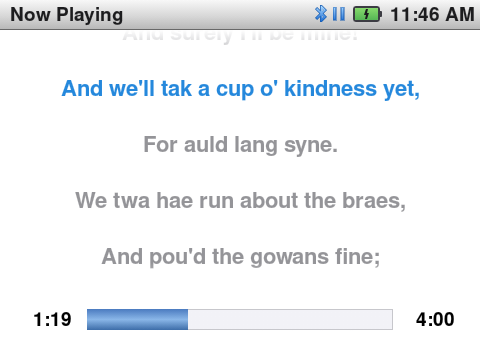
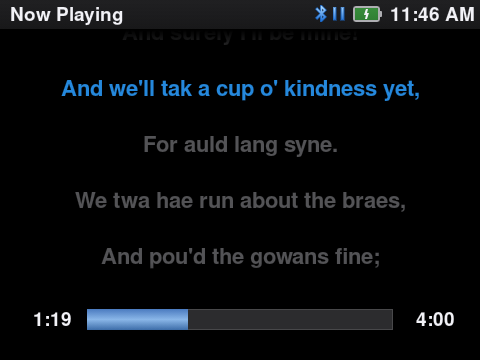
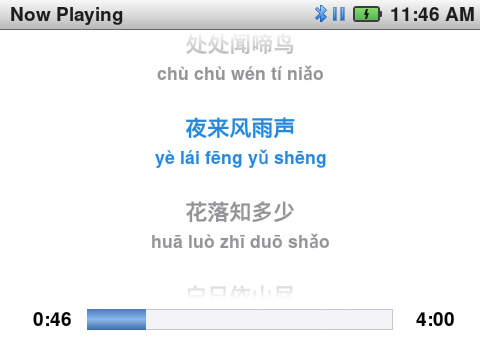
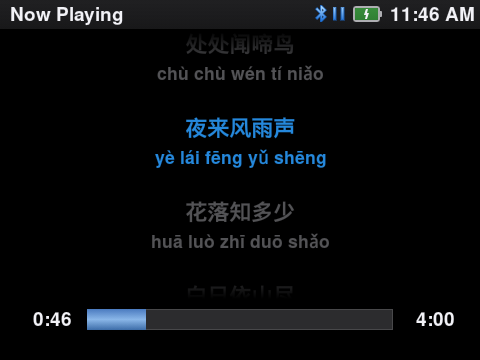
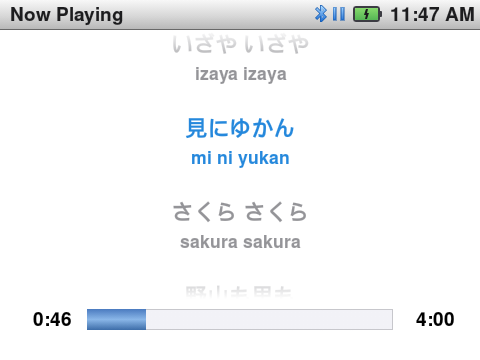
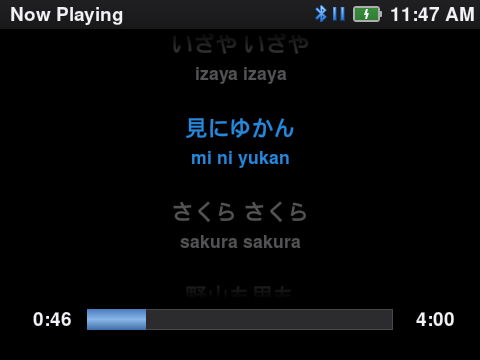
- From
.lrcfiles next to the song or from the tags (MP3USLT, FLAC, ALAC). - Settings → Now Playing → Lyrics: Original, Romanised (pinyin, romaji) or Original + Romanised, with the romanised line under each original line. The romanised lines come from a
.romanised.lrcfile next to the song. - Settings → Now Playing → Lyrics Keep Screen On: the screen stays on while the lyrics show and the music plays.
Play On
Your Sonos plays it. Your TV plays it.
Main menu → Play On sends the music to a speaker on your Wi-Fi: a Sonos, another DLNA player, or a smart TV with Google Cast. No phone, no app, no Google Play Services.
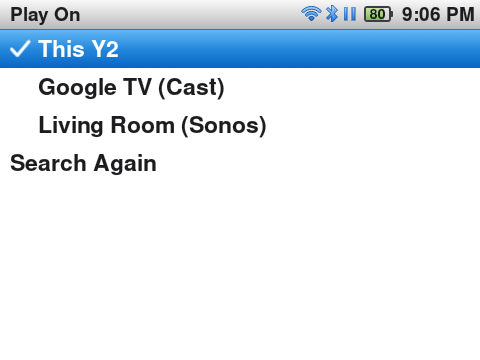
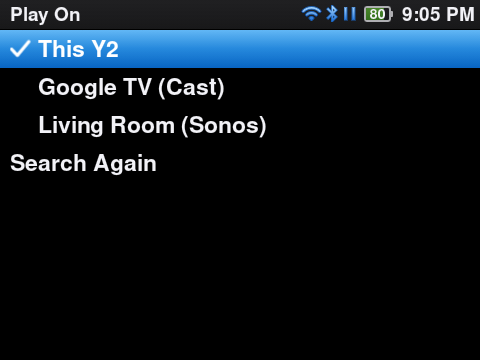
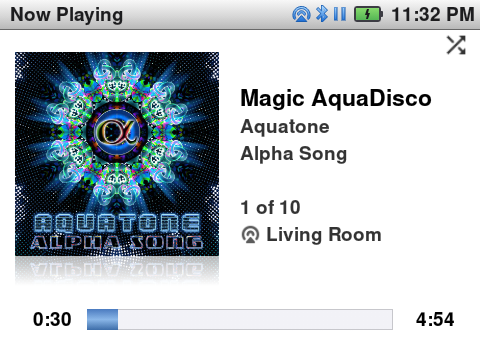
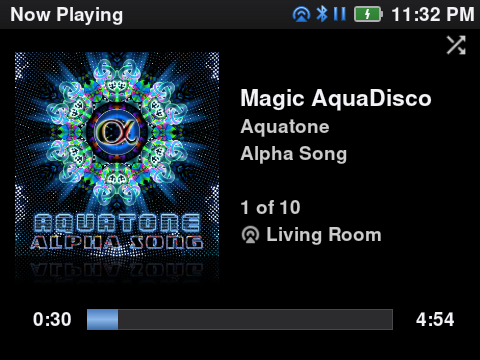
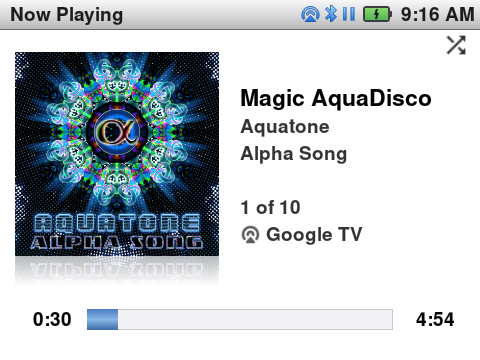
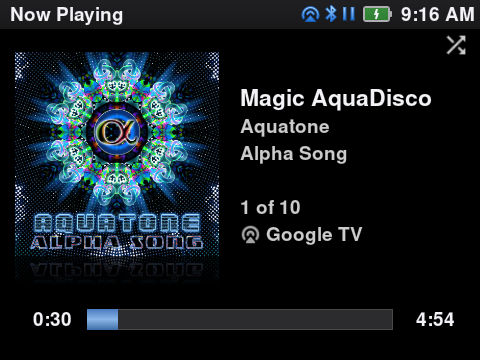
- The wheel stays in control: next song, pause, seek and volume go to the speaker. A pause in the Sonos app or with the TV remote comes back to the Y2.
- On Now Playing, hold the centre button and choose Play On to change the speaker.
- The Play On icon takes the place of the Wi-Fi icon, and Now Playing shows the speaker name.
- The speaker gets the title, artist and album. A Google Cast TV also shows the cover; the Sonos app shows it for MP3 files with a MusicBrainz album ID.
- On a long pause the Y2 lets go of the speaker, so it can sleep and save the battery. Play connects again, to the same speaker.
Bluetooth
Earbuds, headphones, and the car.
Pair with the wheel only: the Y2 answers each pairing step itself and shows the pairing code on its own screen.
In the car
The car shows the title, artist, album and a progress bar. Its steering-wheel buttons work with the screen off. No access prompts for contacts or messages.
Pause and resume
Turn the car off or take the earbuds out: the music pauses. Connect again within 4 hours, and it plays on at the same place.
Headphones
Unplug wired headphones and the music pauses. The volume is kept for each output.
Wi-Fi
Wi-Fi that does something.
The Y2 has Wi-Fi. Here it plays, syncs and downloads, all from the wheel.
Jellyfin sync
Sign in with QuickConnect, then sync music and audiobooks from your own server.
Podcasts
Subscribe to feeds, stream an episode, or download it for later.
Upload from a browser
Turn on the web server and drag files into a page on your computer. No cable.
Correct time
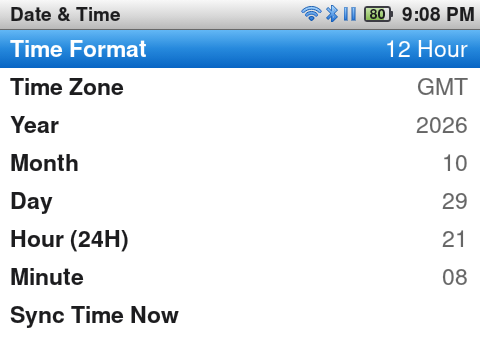
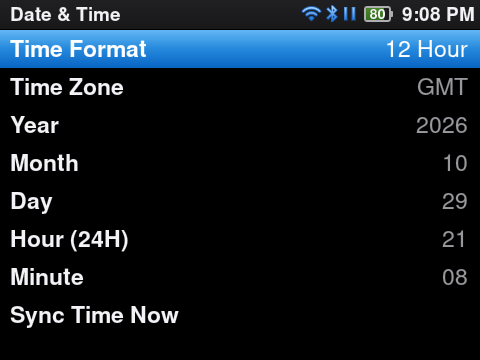
Sync Time Now sets the clock from the internet, in your time zone.
Last.fm
Scrobbles wait on the Y2 and go to Last.fm when Wi-Fi is on. Sign in with a QR code.
Updates
Settings → General → System Update gets the newest release from GitHub and installs it. Choose Update Channel → Beta to try new features before they reach everyone.
FM Radio
Radio, the iPod nano way.
Main menu → FM Radio opens the tuner and turns the radio on, on the last station. Push Menu for the Radio menu.
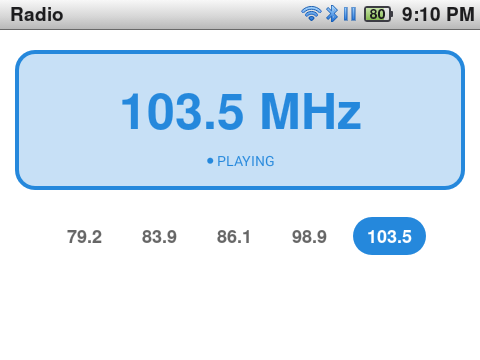
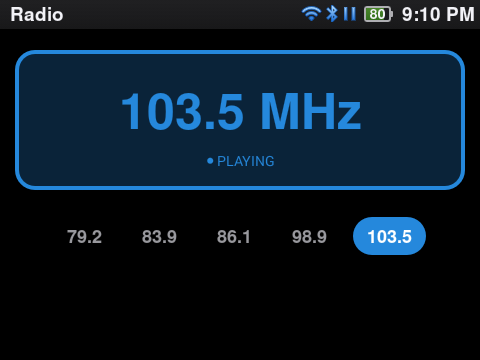
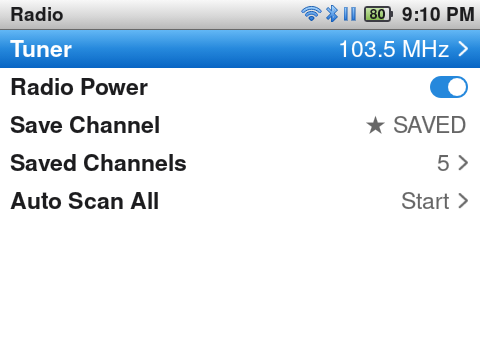
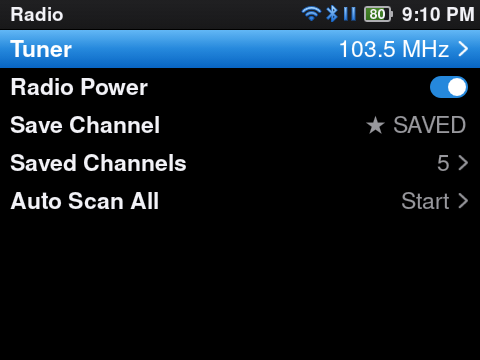
- While the radio plays, Play/Pause pauses it and Next/Previous go to the next saved station, from any screen.
- One sound at a time: music starts, the radio stops; the radio starts, the music pauses.
- It plays on with the screen off.
Your library
All your music, the iPod way.
Artists, Albums, Compilations, Songs, Genres, Composers, Playlists and Folders. Hide the items you do not use in Settings → Menus; the main menu items can also move. Shuffle Songs plays the whole library.
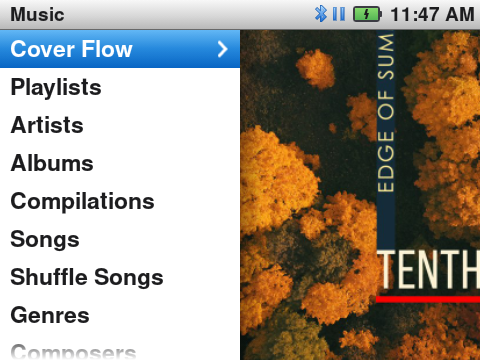
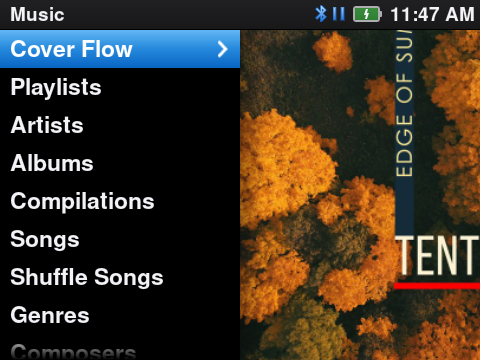
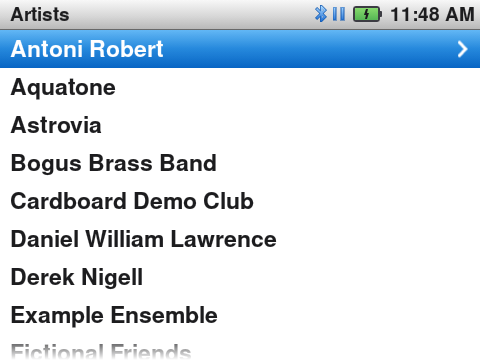
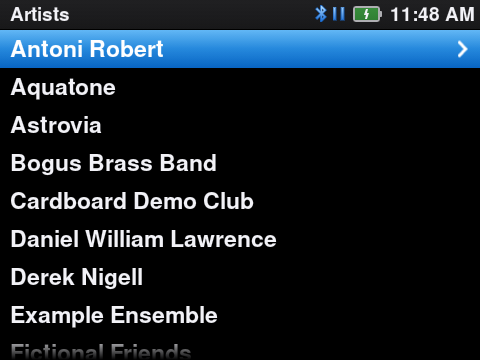
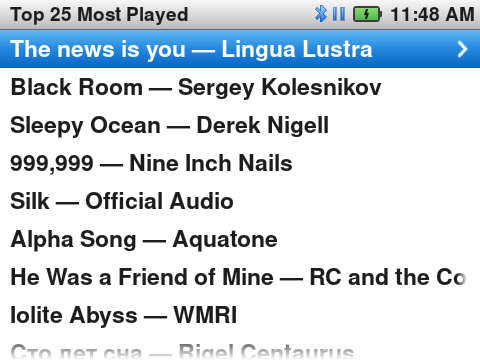
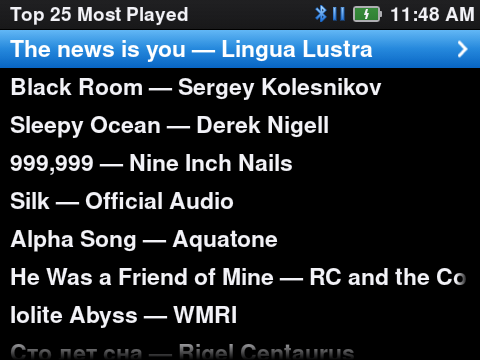
- MP3, FLAC, WAV, OGG Vorbis, Opus, ALAC and AAC, on the internal storage and the microSD card. The folders: Files and limits.
- A play counts after half the song (or 4 minutes), for Top 25 and for
.scrobbler.log(Last.fm, ListenBrainz). - Audiobooks with a bookmark for each book, and videos.
Battery
See where the battery went.
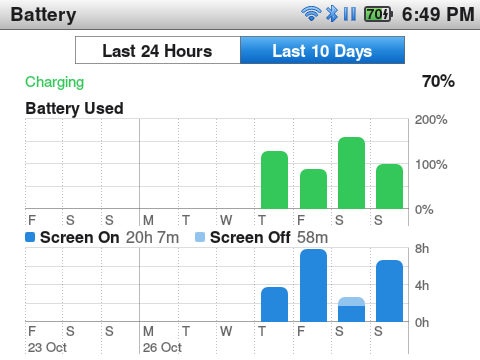
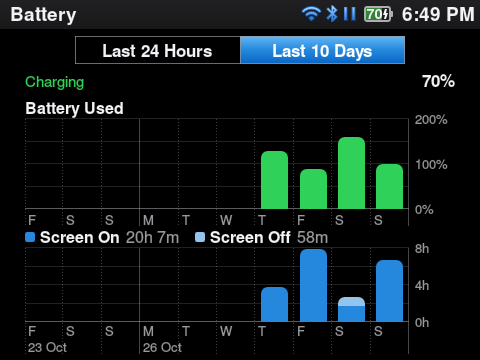
Settings → Battery shows the battery level and the screen time of the last 24 hours and the last 10 days, as on a Mac.
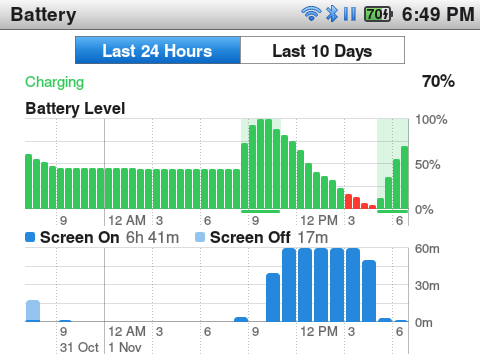
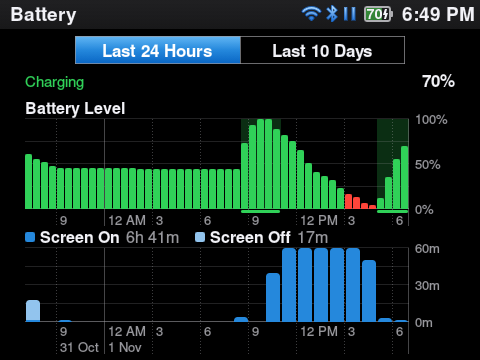
- Last 24 Hours: the level each 30 minutes, the charge periods, and the minutes of each hour with the screen on, or with music or the radio and the screen off.
- Last 10 Days: the battery used and the screen hours of each day. Turn the wheel or push the centre button to change the range.
- The history has no timer of its own and never wakes the Y2: it writes a line only at an event that comes anyway: a battery or charger change, the screen on or off, or the music that starts or stops.
Details
Small things, done right.
- Settings in iPod groups (Playback, Display, Now Playing, Status Bar…) with On/Off switches. Export and import all settings as one file.
- Each push does one action, on release. One vibration for each step; the click has its own volume.
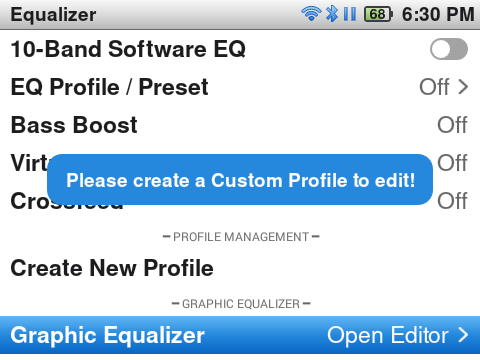
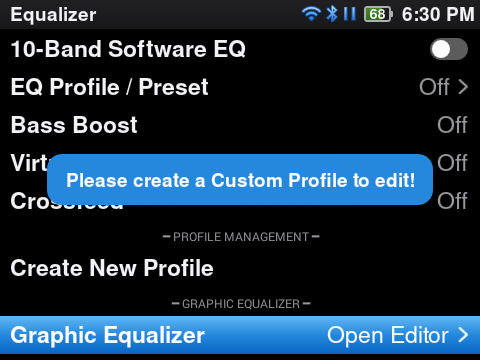
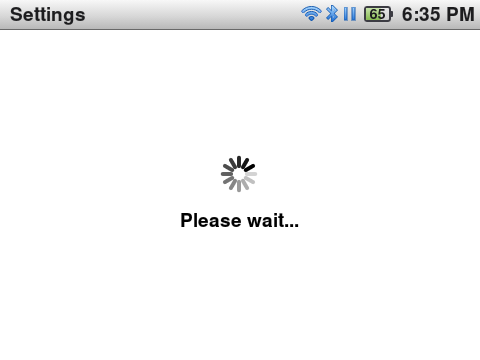
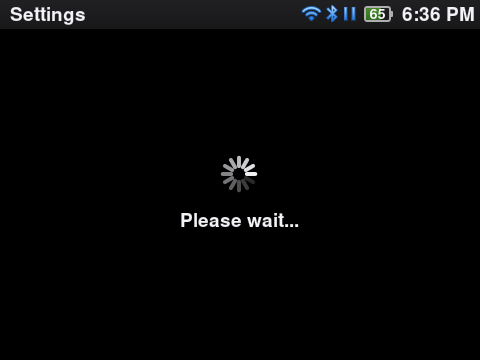
- Notices in a small box, and waits with the iPod progress bar or spinner, not Android toasts and dialogs.
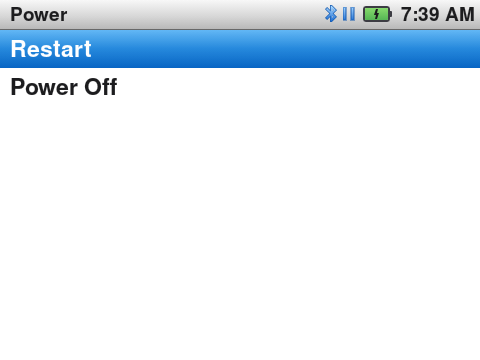
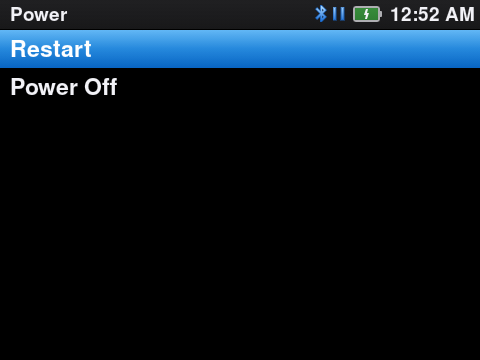
- Hold the Power button: a Power screen (Wi-Fi, Bluetooth, Brightness, Restart, Power Off) that the wheel can use.
- On the Y2, the battery level comes from the battery voltage, not from the Y2's own gauge, which can show 69 % twenty minutes before the Y2 turns off. Settings → Status Bar → Battery Percentage puts the number in the battery icon.
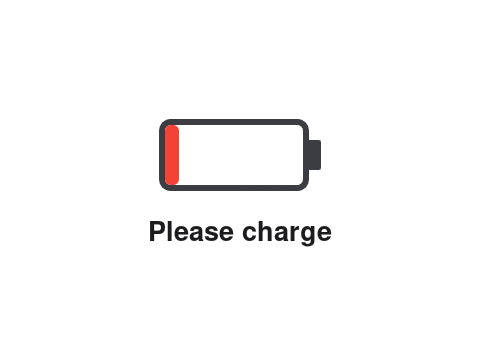
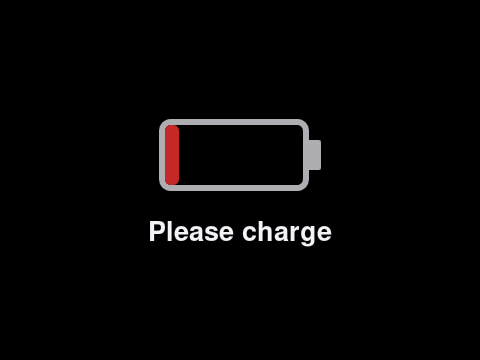
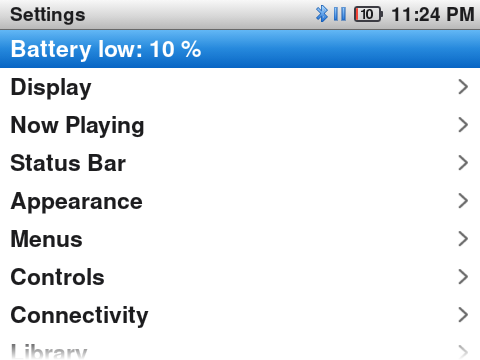
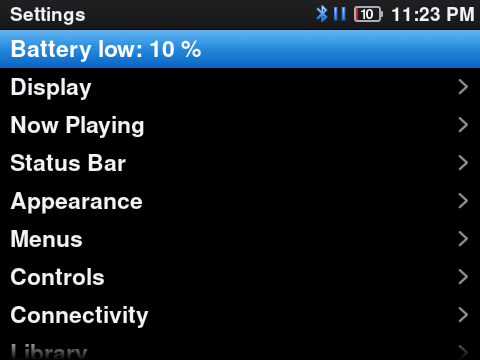
- A “Battery low” banner at 10 % and an iPod Please charge screen at 3 %. When the battery is empty, the Y2 pauses the music, saves the play queue and turns itself off.
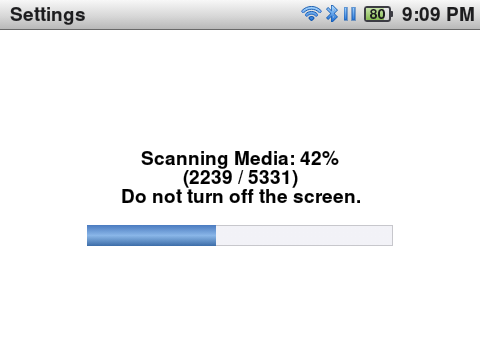
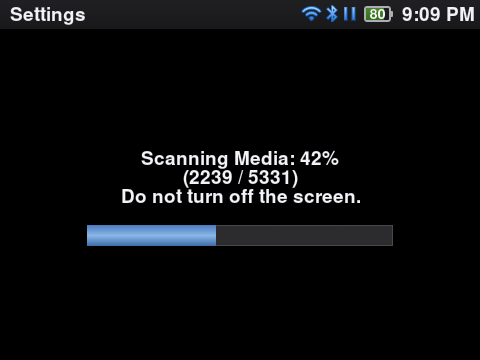
- Connect the USB cable and choose Use as USB Drive: the microSD card shows on your computer as a disk. Settings → Connectivity → USB Drive sets what happens when the cable goes in: Ask, Always or Never.
Files and limits
Where your files go.
Classy reads the same folders on the internal storage and on the microSD card: Music, Audiobooks, Movies, Tvshows, Playlists and Games.
Music
MP3, FLAC, WAV, OGG Vorbis, Opus (also in .ogg files), ALAC/M4A and AAC.
Covers
From the tags (ID3, FLAC, ALAC), or cover.jpg or folder.jpg in the album folder. Use square covers of 600 × 600 pixels or more: smaller covers are blurred when they pan next to the menus.
Lyrics
A .lrc file next to the song, or the lyrics tag (MP3 USLT, FLAC, ALAC). Romanised lines: a <song>.romanised.lrc file with the same times.
Playlists
.m3u and .m3u8 files in Playlists. New playlists go to the microSD card, so a computer can copy them. Playlists in an old Y1_Playlists folder move there.
Videos
In Movies and Tvshows; old Videos folders move there. For smooth video: about 640 × 480, 30 fps and 2 Mbps or less. HandBrake presets are in tools.
Games
iPod click wheel games: .ipg files or game folders in Games. To find new games: Main menu → Games → Rescan Games.
Last.fm
Each play goes to .scrobbler.log at the top of the internal storage. To send the plays, sign in with Settings → Library → Last.fm Account: this turns on Sync Scrobbles to Last.fm.
Copy files
Only the microSD card can be a USB drive. The internal storage shows as a media device (MTP) when you choose Not Now, or after Eject on the USB drive screen. On a Mac, use an app such as OpenMTP. Without a cable: Settings → Connectivity → Web Server.
A large library
build_library_cache.py reads the tags on a computer, so the scan on the Y2 is fast. The steps are in the script.
Known limits
- Gapless playback works only for a queue of 15 songs or fewer, with Shuffle off, and without audiobooks or podcasts.
- Mono Audio does not change videos. The Virtualizer does not run while Mono Audio is on.
- Play On: the Sonos app shows only HTTPS covers, so a Sonos gets a cover only for MP3 files with a MusicBrainz Album Id tag. The other speakers get the cover from the Y2.
Install
Try it on your Y2.
The download is the latest release on GitHub: the Y2 firmware (rom_y2.zip), the APK and the checksums. The Innioasis Y1 is experimental: the release firmware does not start on it. Status and test builds: issue #82.
Firmware
- Open the Inniclassic page on innioasis.app and install Innioasis Updater CE (the page links to it).
- In Updater CE, choose Y2 as the device model and Inniclassic as the software. Select a release and click Install / Restore.
- Power off the Y2 and connect it only when the updater asks. When the Y2 restarts, it starts in the main menu.
Manual install: download rom_y2.zip from the latest release and keep its name (do not rename it to rom.zip). In Updater CE, click Install from a file… → Browse Files…, choose the file and click Install / Restore. Updater CE uses the extracted files of an earlier file with the same name again: if you installed a firmware file before, first click Settings → Clear Firmware Cache.
A full flash erases the internal storage. Music on the microSD card stays. Keep the cable in until the update is done.
App only (APK)
On a Y2 that already runs this firmware (ADB is on), connect the USB cable:
adb install -r Classy-<version>.apkThe update keeps your settings, music, playlists and .scrobbler.log. The firmware installs the app as a system app, so adb uninstall cannot remove it. Releases are signed with one key. If the Y2 runs an older release with a different key, the install fails with INSTALL_FAILED_UPDATE_INCOMPATIBLE: flash the firmware instead.
Beta builds are the releases marked Pre-release: new features first, with a higher chance of bugs. To get them over Wi-Fi: Settings → General → System Update → Update Channel → Beta. To leave the beta, choose Stable: the Y2 then waits for the next stable release. A firmware or APK that you install by hand sets the channel of that build.
Build it yourself
JDK 17 and the Android SDK:
git clone
cd
./gradlew assembleDebug